

Set up and use guest access
Guests can use their booking without a personal account. They need the booking link and a separately requested confirmation code. The reservation's permissions and time windows determine which controls are available.
As an administrator: send access
You need a reservation assigned to a person and permission to manage its guest access. Suitable devices and provider connections must be configured for controls to work.
- When creating the reservation, select the allowed actions and times under Guest access. Copy from template can prefill compatible settings.
- Enable Include guest access in the confirmation and check Email for this booking. Delivery is saved together with the reservation.
- For an existing reservation, open Guest access in the booking details. Choose Send access link if access has not been configured yet.
- Check the status dots: Access link sent indicates sending. Not activated yet means no code confirmation has been recorded for the current access. Activated means setup was confirmed; it is not an online indicator. The full recipient address and status dots appear together in one element. Resetting access requires a new confirmation.
The booking email is separate from the person's contact details. Changing contact details does not automatically replace an existing guest-access recipient. If a personal account is already linked, its explicitly granted booking permissions are available directly.
As a guest: confirm your booking
- Open the link in your booking email in a browser.
- Check the masked recipient and choose Request code.
- Open the separate code email and enter its six letters under Confirmation code.
- Choose Confirm booking. My bookings shows bookings confirmed on this device.
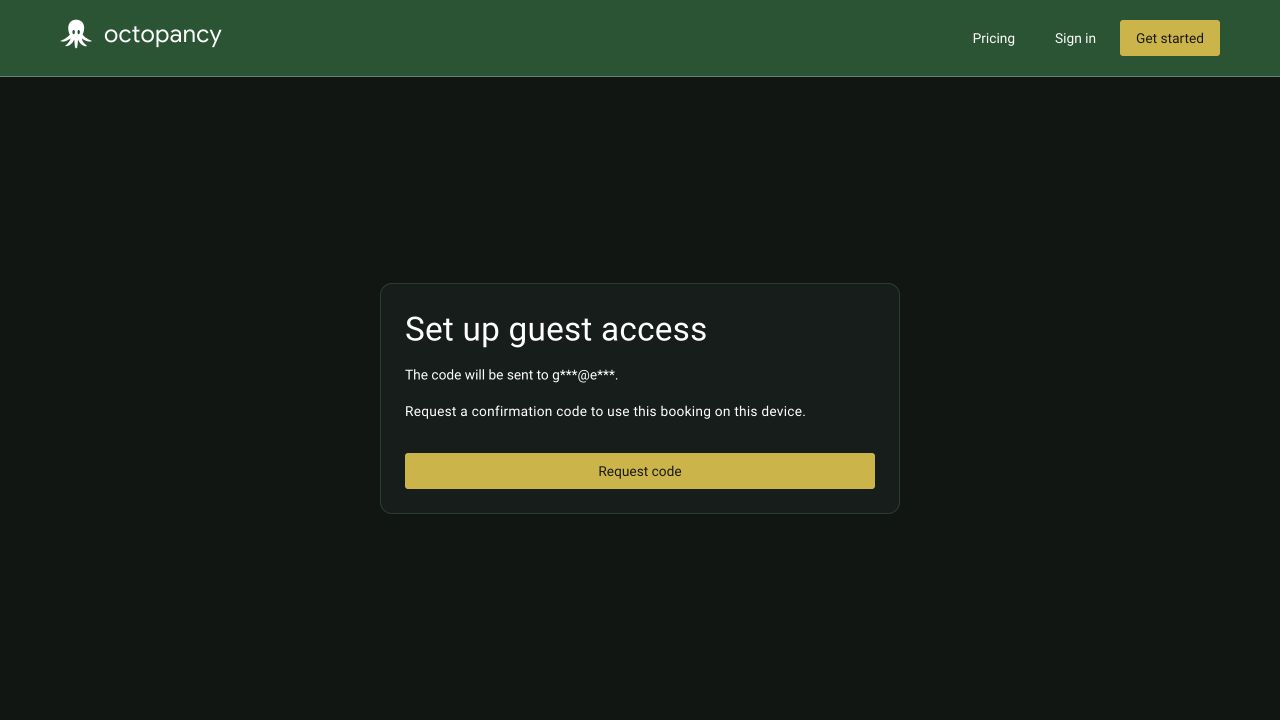
The code is valid for ten minutes, at most until the setup flow ends. After five incorrect attempts, reopen the booking link and request a new code there. You can request another code after at least one minute. If the setup flow has expired, reopen the booking link.
Your session survives closing and reopening the browser unless you clear browser data or the session expires or is revoked. After six months without active use, or twelve months at the latest, confirm the bookings you need again. Sign out on this device ends this session.
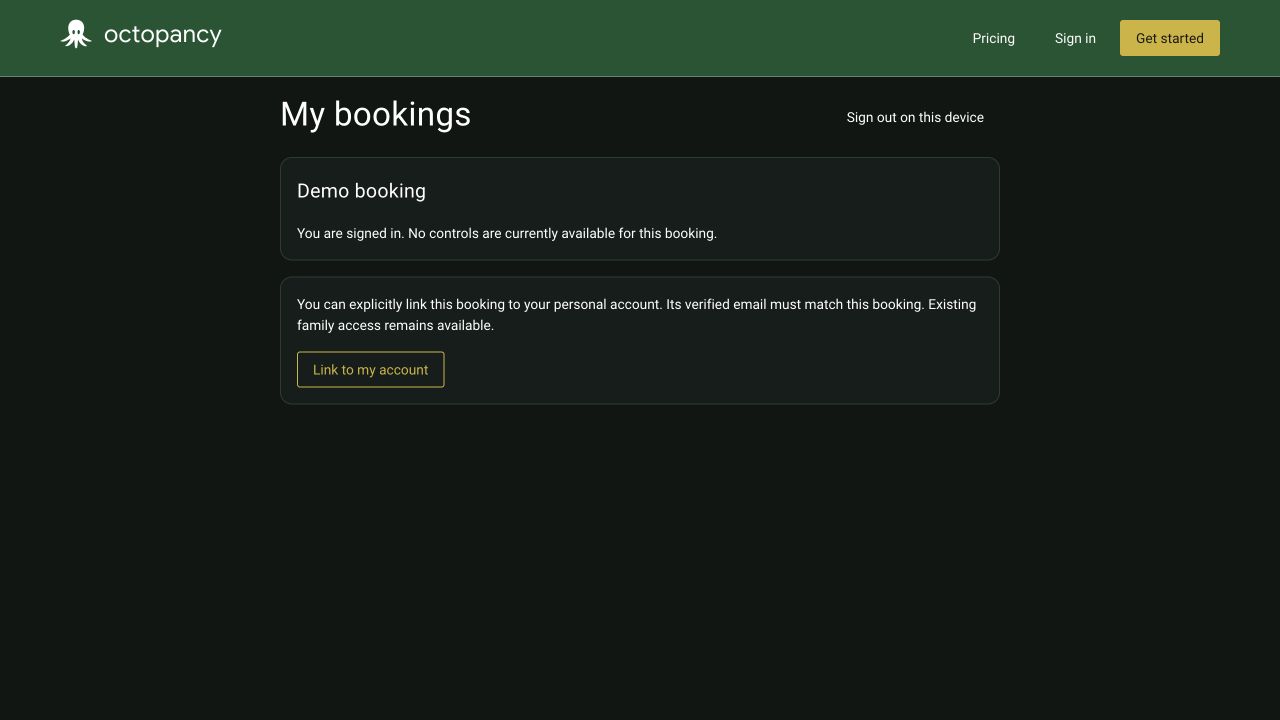
You can remain signed in even when no control is currently available. Actions depend on your booking, its time window and configured devices. A lost connection does not queue commands. If the outcome is uncertain, check the device before sending another command.
Family, another device and a personal account
Each additional device confirms the booking separately through the link and code. These devices can remain signed in together. Another booking appears only on devices where it has also been confirmed.
Link to my account is optional. Sign in to your personal account and explicitly confirm the link. Its verified email must match the booking recipient. Existing family access remains available; it gains no other bookings or account data.
Change or end access
Depending on the current state and your permissions, Guest access offers these actions:
- Resend link sends the existing link. Existing device access remains available.
- Replace recipient and reset access appears directly below the email field and changes the booking email for access without an account link and ends existing device access to this booking.
- Reset device access helps when a device is lost. Every device must confirm this booking again. For a linked account, recovery goes exclusively to its currently verified email.
- Revoke booking access ends access to this booking through the linked account as well. Other bookings and the session remain intact.
If the interface reports that the booking has changed, review the refreshed state before deliberately submitting your intended change again.
Templates and team access
Editing a template does not silently change existing reservations. Use the template again when needed, review the values and save guest access. Signing in alone does not enable a door or heating function.
Guest access is not team membership. Employees use workspace invitations. See Reservations for related guidance.