

Use a location, area or room as a unit
A unit defines what can be reserved independently and configured with controls. It is not an extra physical level: it refers to a location, area or room.
| Your model | Physical structure | Reservable unit |
|---|---|---|
| A whole holiday house | Location Villa Aurora | Villa Aurora |
| An apartment or office floor | Location → Area A | Area A |
| A guest room or meeting room | Location → Area A → Room A101 | Room A101 |
Below the name, the assigned device count appears beside the room or area label with a device icon. This information is hidden when no devices are assigned. An assigned group, such as a Homematic IP heating group, counts as one entry. The count updates automatically when assignments change.
Choose Assign devices from an existing unit’s three-dot menu. Device assignment opens with that unit already selected. The Add devices dialog opens immediately so you can choose the device. This also works for an area without rooms. Renaming a site, area or room updates a matching unit name; intentionally different unit names are preserved.
Displaying more entries
For long unit lists, use Load more to display additional entries. Search also finds units outside the currently displayed results and matching area or room names.
Use the location as a unit
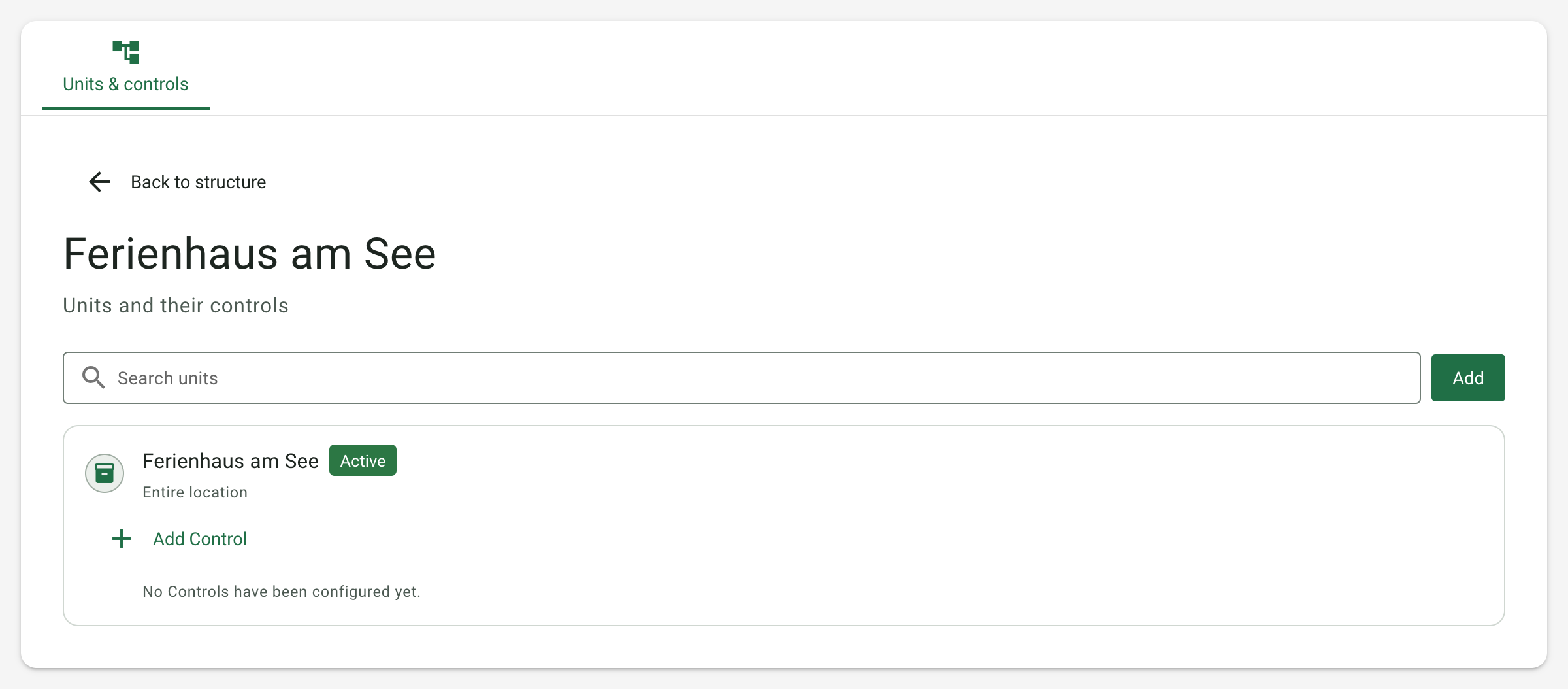
- Open the location and Units & controls.
- Choose Use as Unit directly on the location card.
- Confirm with Yes, use as a Unit. The name and assignment are already known.
- The view opens the unit and its controls. Choose Add Control to configure a control.
No area or room is required.
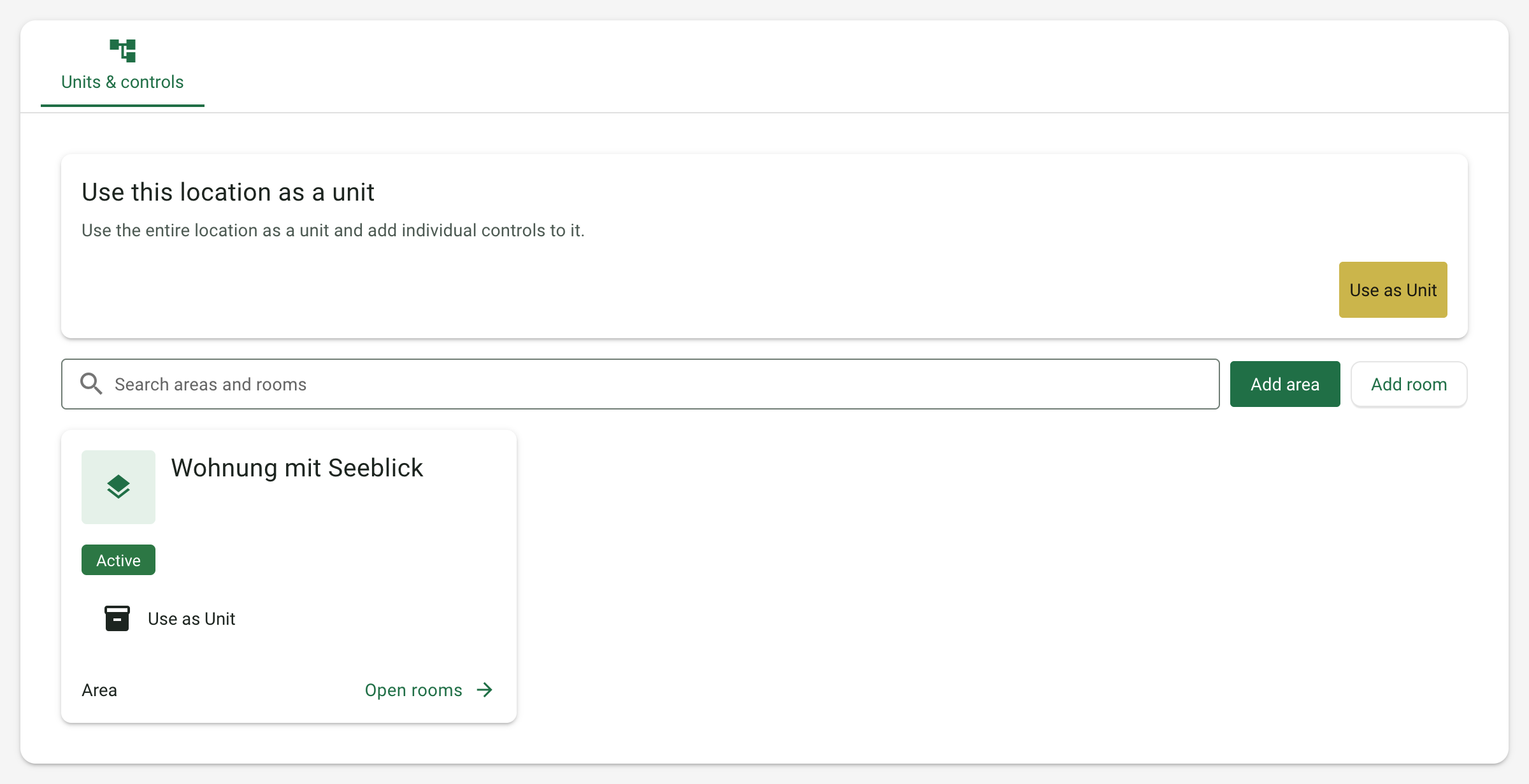
Use an area as a unit
- Choose Add area in Units & controls.
- Enter a name, such as Apartment A, and confirm with Add.
- Choose Use as Unit on the area card and confirm.
Use Open rooms to add rooms within this area. Those rooms do not have to be units themselves.
Use a room as a unit
- Choose Open rooms on the area card.
- Choose Add room, enter its name and save. The open area is used automatically.
- Choose Use as Unit on the saved room and confirm.
A room can also belong directly to the location: choose Add room in the location overview.
Open controls in context
Configured units are marked Unit. Open controls displays the units and controls at exactly that location, area or room. Back to structure returns to the previous spatial view.
If several independent units are needed at the same place, choose Add in this detail view. Enter the additional unit's name; its place is already known. Avoid duplicating the same bookable object by mistake.
Docto Pancy explains
Start with the simplest structure that fits. A holiday house does not need artificial floors and rooms if you always manage it as a whole.
Search units
Use Search units in the open unit view to filter by name or displayed spatial assignment. Clear the search field to show all units at this place again. Searching does not change assignments.
After successful creation, the dialog closes. If saving fails, your entries remain available. Adding units requires management permission and an active location.
Existing units and booking conflicts
If the selected place already has a unit, Open controls opens its existing units. Avoid creating the same bookable space twice by mistake.
Important: Availability is checked per unit. Do not create an entire building and its rooms as separate units and assume they automatically block each other's bookings. Physical nesting alone does not provide this protection.
Next: Connect a provider or create people and reservations.
Maintain units
A unit's three-dot menu offers Edit, Add Control, Activate, Deactivate and Delete, depending on status and permissions. An inactive parent location must be activated first. Deletion checks identify existing uses that prevent removal.
Under Break between reservations, inherit the location default or specify a custom break. New reservations use the effective setting; saved reservations retain their stored break.
Heating timing per unit
In Site → Master data → Heating, configure Preheat before arrival and Set back before departure. Both values are minutes before their boundary: a 15:00 departure and 120-minute setback lead start setback at 13:00.
Choose Settings from a unit's action menu to inherit or independently override either Site value. Explicit zero is supported. This applies to rooms, areas and the whole Site used as a unit. Existing schedules retain their times; these settings do not activate heating automation on their own.